Built to keep up with how fast you record.
Your agent reads, proposes and writes up your video while you stay in charge. Simplify Edits keeps every removed word and every step reversible.
This video could not load. Open the file directly.
Bring your coding agent.
Ask Claude Code or Codex for an edit in plain words, then review the result in the editor.
Ask in plain words
Type the request in the Assistant panel. Pick the model per message: Sonnet, Opus or Haiku through Claude Code, or the models your installed Codex offers. You see each step as the agent plans.
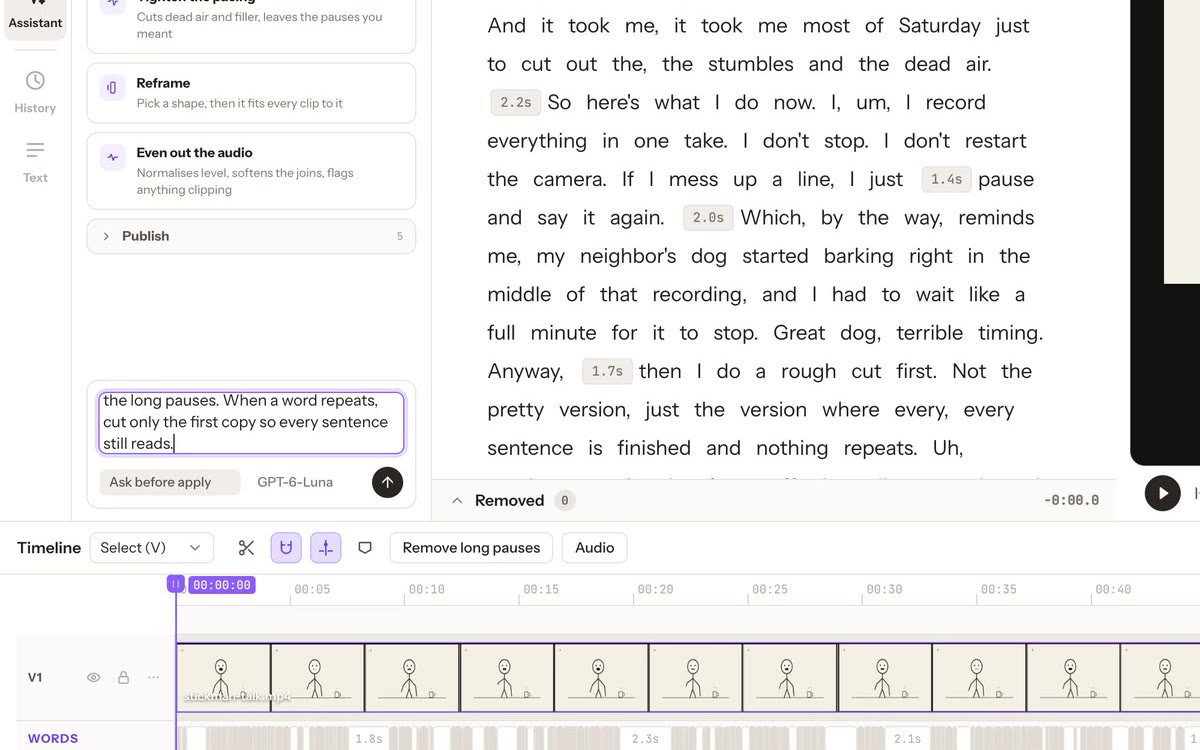
You choose how much it may do
New chats start in Plan only: it proposes, nothing is applied. Ask before apply lets you review, then approve one reversible batch. Full access lets it apply directly, still one Undo away.
Claude Code or Codex, your pick
Choose the provider in Settings → AI editor. The app never switches to one you didn’t pick, and it runs on your own sign-in.
This video could not load. Open the file directly.
Edit by editing words.
Link your video, get a word-timed transcript, and the transcript becomes the edit.
Start with any video
Choose Link original video and the app reads your file where it is and never modifies it. MP4, MOV, M4V and WebM are accepted. The editor stays available while preparation finishes. The animated Transcribe chapter shows the loading checklist and the words appearing when they’re ready.
This video could not load. Open the file directly.
Three views of one edit
Working is your edit as it plays. Source shows everything that was recorded, with removed words crossed out. Final is the read-only result.
How the transcript is made
Transcription is processed by ElevenLabs with your own API key: only a 16 kHz mono audio track is used, not your original video, and the word-timed transcript is saved in your project. Local transcription is coming soon.
See every cut before it happens.
Proposals appear in your transcript and on the timeline. Nothing is applied until you say so.
Reject, Accept, Approve all
Proposed removals are crossed out in the transcript and boxed on the timeline. Open the list to see each change with its time range and a Why, then reject or accept it, or Approve all and apply. Applying is one reversible edit.
This video could not load. Open the file directly.
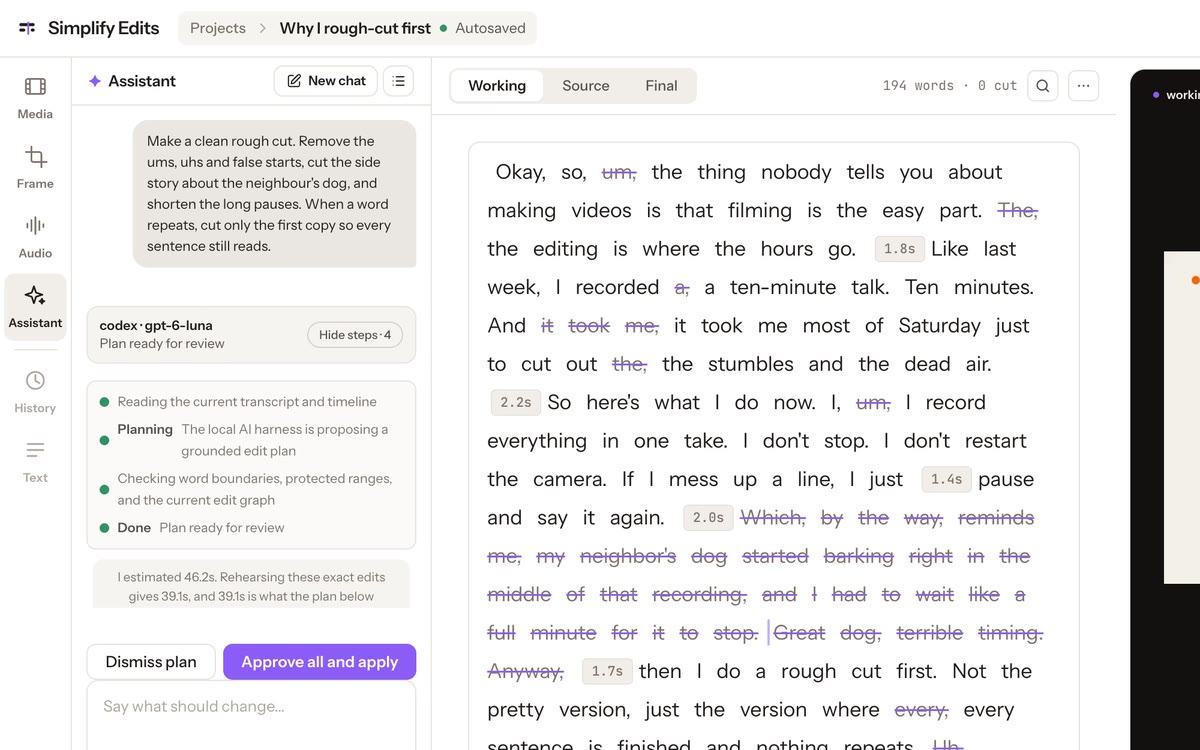
The plan in plain words
The agent’s plan is summarised in the chat before you open a single change.
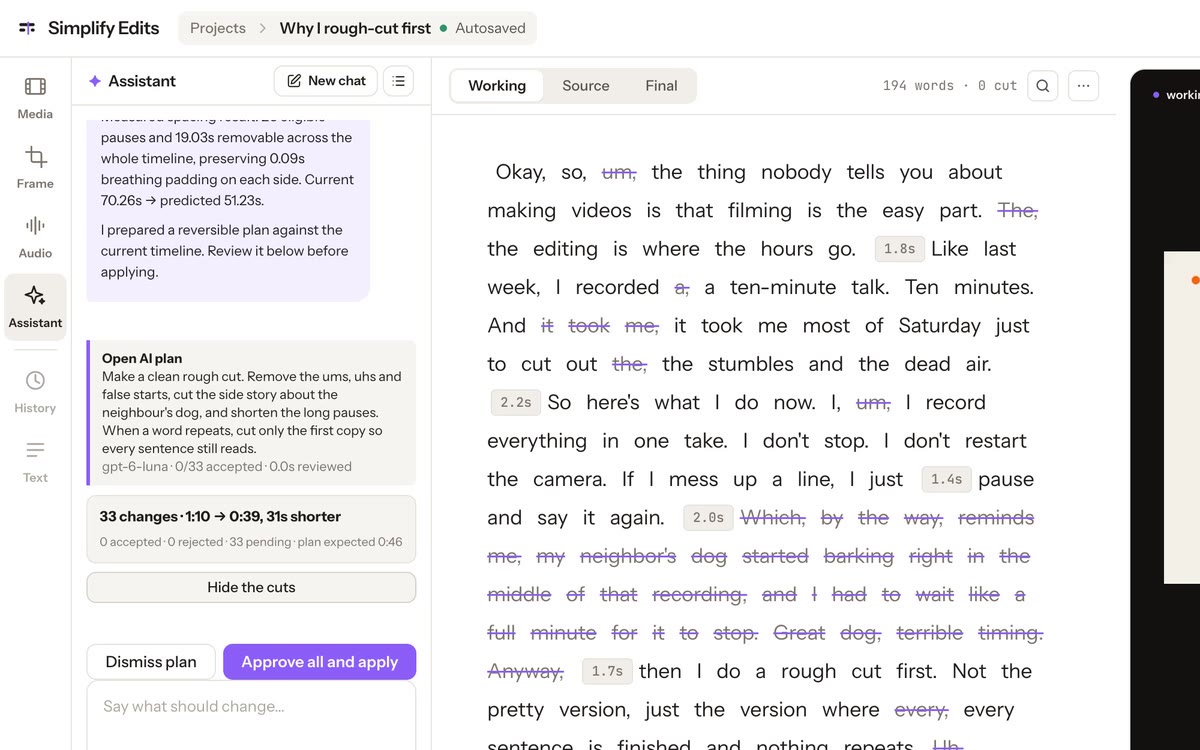
Every change has its own say
Each change shows what it removes and why, with a Reject and an Accept of its own.
Changed your mind? Bring it back.
Nothing you cut is ever thrown away, and one Undo reverses a whole applied plan.
Bring removed section back
Switch to Source, select the crossed-out words and choose Bring removed section back. Only the words you selected return. In this recording a 36-word passage comes back and the edit grows from 0:39 to 0:50.
This video could not load. Open the file directly.
An applied plan is one step
Undo and Redo sit at the top right. One Undo reverses the whole applied plan, and Redo puts it back. History is one step per plan, not one per word.
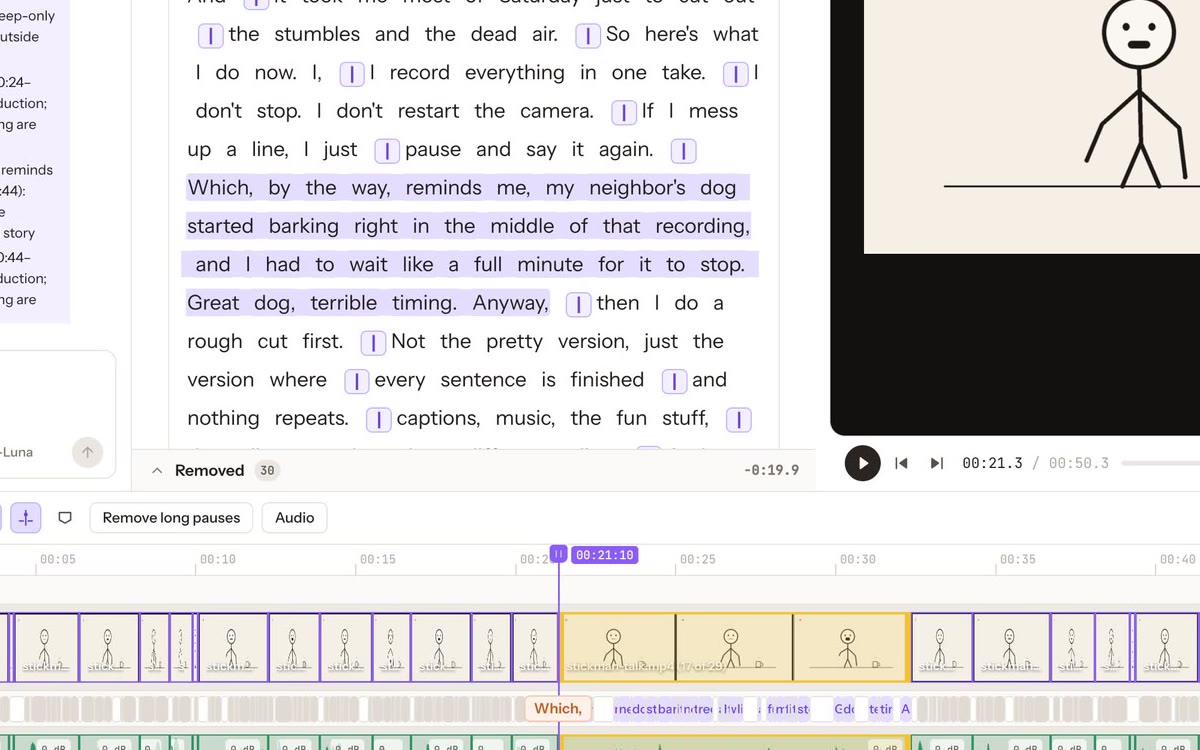
Take control any time.
Your hands and your agent work on the same edit, so a small fix never needs another prompt.
Select it, remove it
Select words in the transcript and remove them from the right-click menu; the timeline closes the gap. The menu also has Cut, Play, Bring into Working, Start section here and more. The timeline has a blade to split at the playhead, a one-click Remove long pauses, and separate video, words and audio lanes.
This video could not load. Open the file directly.
Reframe it. Write it up.
The same request box can change the frame and write the titles and description.
Make it vertical
Ask the agent to set the video format to 9:16 and fill the frame. It proposes the change, you approve it, and the stage becomes 1080 × 1920. Models can decline a wording: the first one I tried was declined, the second worked.
This video could not load. Open the file directly.
A write-up that goes with the video
One click asks the agent for titles, a description and captions. Approve it, save it to the project, and it exports as a Markdown file next to the MP4.
This video could not load. Open the file directly.
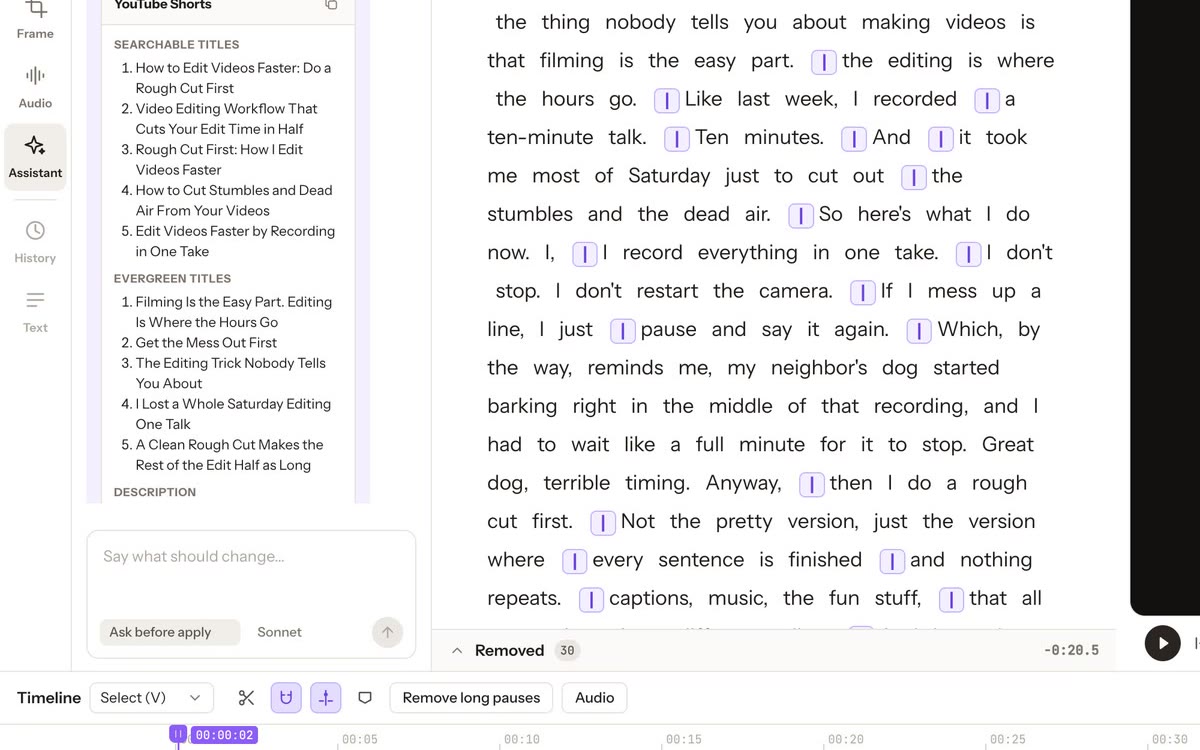
Titles you can pick from
Short-form and evergreen title options appear in the panel, with the description below.
Export the video and its description.
Get a real file, check it, and find it in Finder.
Files you can use right away
The export dialog lets you choose what to include, including the description, and shows where it will be saved. When the render finishes the app reports what it checked: duration, resolution and that audio is present. Show in Finder opens the folder.
This video could not load. Open the file directly.
What it doesn’t do today
- No signed or notarized download yet. Builds target Apple Silicon Macs on macOS 12 or later.
- Clip-pack export (one file per section) is planned; the export dialog says it isn’t available yet.
- Transcription needs your own ElevenLabs API key in the current build. First-run setup for that is still being designed.